
لا تحب الإعلانات؟ يذهب خالية من الإعلانات اليوم
التحقق من التوقيع الإلكتروني PDF ما يحتاجه المطورون للاطلاع عليه
نُشرت في
يواجه معظم المطورين ملفات PDF موقعة دون أن يدركون ما يضمنه التوقيع الكريبتوجرافي. إليك ما يجب أن تعرفه لفحص توقيع PDF بشكل صحيح.
إعلان · حذف؟
لقد عمل العديد من المطورين مع ملفات PDF موقعة - مثل عقد موقّع، أو إشعار بنكي موثوق، أو نموذج رسمي من الحكومة. لكن مفهوم "الموقعة" يختلف حسب من يسأل. الرسم البصري في مربع التوقيع والتوقيع الكريبتوجراافي المدمج في الملف هما مفهومان مختلفان تمامًا. فقط واحد منهما يضمن شيئًا حقيقيًا.
تغطي هذه المذكرة كيفية عمل التوقيعات الرقمية في PDF، وما تعنيه حالات الاعتبار المختلفة، وكيفية التحقق منها بشكل برمجي.
التوقيع الذي تراه مقابل التوقيع الذي يهم
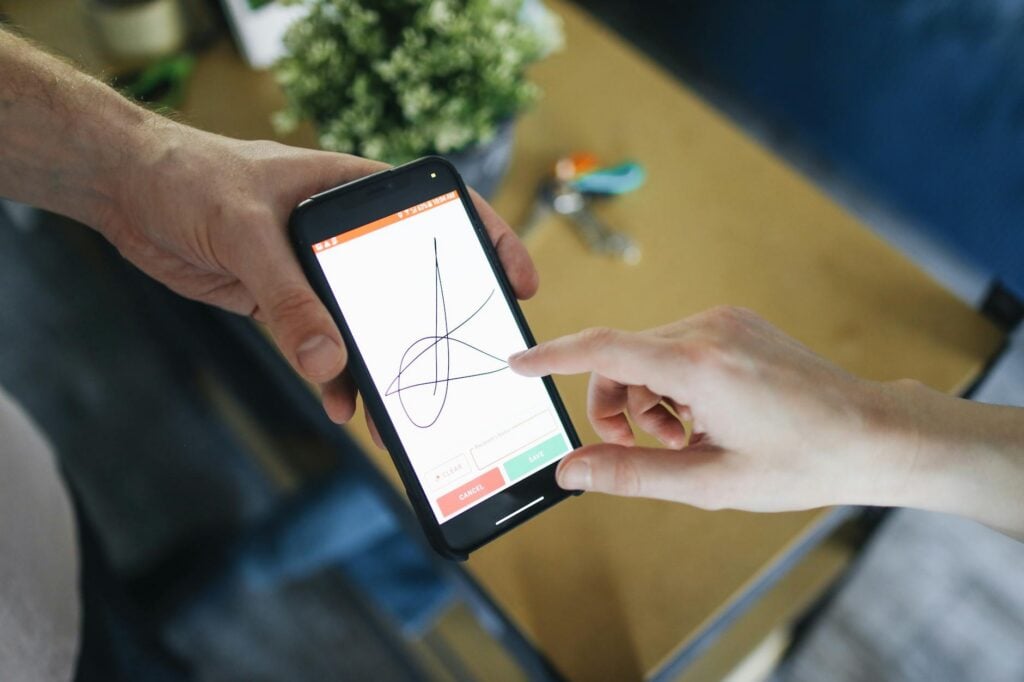
عندما يضع شخص "توقيعًا" على ملف PDF باستخدام أداة رسم أو طبقة صورة، فإنه يضع صورة للتوقيع على الصفحة. يبدو رسميًا لكنه لا يحمل أي ضمان أمني. يمكن لأي شخص نسخ هذه الصورة إلى مستند آخر.
التوقيع الرقمي مختلف. إنه مكون كريبتوجراافي مدمج في بنية PDF نفسها - منفصل عن أي عنصر بصري. عند توثيق مستند رقمي:
- يُحسب ملخص (hash) لمحتوى المستند.
- يُستخدم المفتاح الخاص للتوقيع لفك تشفير هذا الملخص.
- يُخزن الملخص المشفّر (التوقيع) داخل PDF مع سلسلة شهادات التوقيع.
عند التحقق من التوقيع، يتم فك التشفير باستخدام المفتاح العام من الشهادة، إعادة حساب الملخص من محتوى المستند الحالي، ثم مقارنته. إذا كانت مطابقة، لم يُعدّ المستند مُعدّلًا منذ التوقيع. وإذا لم تكن مطابقة - أو إن الشهادة غير موثوقة - فإن التوقيع غير مقبول.
أربعة حالات صلاحية للتوقيع
ليست كل التوقيعات الرقمية متساوية. عند تحقق من توقيع PDF، ستحصل على واحدة من أربع حالات:
| حالة التوقيع | ما تعنيه | ما يجب فعله |
|---|---|---|
| مُعتمد | يتم تطابق الملخص، وسلسلة الشهادات موثوقة، وكانت الشهادة نشطة في وقت التوقيع | أعتمد على التوقيع - تحقق من هوية التوقيع مقارنة بشهادة متوقعة |
| غير مقبول | تم تغيير محتوى المستند بعد التوقيع، أو تلف بيانات التوقيع | أرفض المستند؛ فقد تم تعديله أو يحتوي على تلف |
| غير معروف | هيكل التوقيع مكتمل، لكن لا يمكن تأكيد الشهادة (مصدر غير موثوق، أو غياب OCSP، إلخ) | لا يمكن أن أثق بالتوقيع - اطلب إعادة التوقيع أو احصل على الشهادة الموثوقة |
| مُلغ | كانت الشهادة صالحة عند إصدارها، لكن تم إلغاؤها لاحقًا من قبل جهة الشهادة (مثلاً: تهديد للفئة) | أرفض ما لم تثبت بيانات LTV أن الشهادة كانت صالحة قبل الإلغاء |
حالة "غير معروفة" تُربك معظم المطورين. التوقيع الصحيح من حيث الهيكل، ولكن مع شهادة موقعة ذاتياً أو داخلية للشركة، يظهر كـ "غير معروف" في أغلب الأدوات لأن هذه الأدوات لا تستطيع الوصول إلى صاحب الشهادة. في سير العمل الداخلي، قد تُعتمد الشهادة بوضوح؛ أما بالنسبة للوثائق من أطراف خارجية، فإن "غير معروف" غير مقبول.
التحقق الطويل الأمد (LTV): لماذا تُهم التوقيعات الزمنية
تنتهي شهادات التوقيع. إذا وقّع شخص على مستند منذ خمس سنوات، وانتهت شهادته منذ ذلك الحين، هل يظل التوقيع معتبرًا؟
يعتمد ذلك على التحقق الطويل الأمد (LTV). عندما يتم تضمين LTV، يحتوي PDF على:
- وقت موثوق من جهة موثوقة للتوقيع (TSA)
- ردود OCSP أو بيانات CRL تؤكد حالة الشهادة في وقت التوقيع
باستخدام LTV، يمكنك إثبات أن الشهادة كانت صالحة في وقت تطبيق التوقيع - حتى بعد انتهاء صلاحيتها. بدونه، يمكنك التحقق فقط من التوقيع بحسب حالة الشهادة الحالية، وهي تصبح غير ممكنة بمجرد انتهاء صلاحيتها أو إغلاق مُقدِّم الرد OCSP.
لعقود أو وثائق مراقبة بمتطلبات احتفاظ طويلة (أكثر من 7 سنوات في العديد من الدول)، فإن LTV ليست خيارًا. يجب دائمًا التحقق من وجوده عند بناء سير التحقق من التوقيع.
التحقق من التوقيعات الرقمية برمجيًا
باستخدام بايثون مع pypdf
ال pypdf توفير وصول إلى حقول التوقيع في PDF وبياناته المضمنة. إليك مثال بسيط لفحص ما إذا كان ملف PDF يحتوي على توقيعات رقمية وقراءة حالات هذه التوقيعات:
import sys
from pypdf import PdfReader

def check_pdf_signatures(path: str) -> None:
    reader = PdfReader(path)

    sig_fields = [
        name for name, field in (reader.get_fields() or {}).items()
        if field.get("/FT") == "/Sig"
    ]

    if not sig_fields:
        print("No digital signature fields found.")
        return

    print(f"Found {len(sig_fields)} signature field(s):")
    for name in sig_fields:
        sig_obj = reader.get_fields()[name]
        sig_dict = sig_obj.get("/V")
        if not sig_dict:
            print(f"  {name}: field present but unsigned")
            continue

        signer_name = sig_dict.get("/Name", "Unknown")
        signing_time = sig_dict.get("/M", "No timestamp")
        reason       = sig_dict.get("/Reason", "")
        location     = sig_dict.get("/Location", "")

        print(f"  {name}:")
        print(f"    Signer:   {signer_name}")
        print(f"    Time:     {signing_time}")
        if reason:
            print(f"    Reason:   {reason}")
        if location:
            print(f"    Location: {location}")

if __name__ == "__main__":
    check_pdf_signatures(sys.argv[1])
هذا يقرأ بيانات التوقيع مباشرة من بنية PDF. لإجراء التحقق الكريبتوجراافي الكامل - تأكيد الملخص وفحص سلسلة الشهادات - استخدم pyhanko أو endesiveالتي تُغلف طبقة التحقق PKCS#7.
استخدام qpdf من خلال السطر
للاختبار السريع من خلال السطر دون بيئة برمجية:
# Show encryption and signature info
qpdf --show-encryption input.pdf

# Full JSON output with signature details
qpdf --json input.pdf | python3 -m json.tool | grep -A 20 '"sig"'
qpdf مفيد في سلاسل تطوير (CI) أو السجلات التي تتطلب تثبيت بيئة برمجية إضافية.
سيناريوهات التحقق الشائعة
عقود موقعة من العملاء - تحقق من حالة الصلاحية وصاحب الشهادة. التوقيع الموثوق من جذور غير موثوقة (شهادة موقعة ذاتياً) لا يوفر أي تأكيد خارجي. تثق بمن أنشأ المفتاح.
الوثائق الحكومية والتنظيمية - تستخدم هذه الوثائق عادة شهادات موثوقة على مستوى الدولة. تحقق من أن سلسلة الشهادات تصل إلى الجذور المطلوبة، وليس فقط أن التوقيع يظهر "مقبولًا".
إشعارات البنوك والفواتير - كثير منها يتم توثيقه بجملة باستخدام شهادات توثيق وثائق مُصدرة لمؤسسة. سير اسم الموقّع سيظهر اسم المؤسسة، وليس موظفًا فرديًا.
التحقق دون كتابة أي كود
إذا كنت بحاجة إلى تحقق سريع من ملف دون إعداد بيئة تطوير، فهذا IO Tools مدقق توقيع PDF يسمح لك بتحميل ملف ورؤية تفاصيل التوقيع فورًا - مفيد للتحقق من ملفات محددة أو لاختبار ملفات عينة قبل بناء سير إنتاجي.

هل تريد حذف الإعلانات؟
تخلص من الإعلانات اليوم
تثبيت ملحقاتنا
أضف أدوات IO إلى متصفحك المفضل للوصول الفوري والبحث بشكل أسرع




恵 وصلت لوحة النتائج!
لوحة النتائج هي طريقة ممتعة لتتبع ألعابك، يتم تخزين جميع البيانات في متصفحك. المزيد من الميزات قريبا!
إعلان · حذف؟
أدوات يجب تجربتها
عرض الكلإعلان · حذف؟
شارك
ساعدنا على الاستمرار في تقديم أدوات مجانية قيمة

إعلان · حذف؟